Category Archives: Fuctions

Painter function

Painter Function

With this function you can determine e.g. the total wall area of a room without having to note down any intermediate results. Simply measure the lengths of the walls, which you can add or subtract as required. Finally measure the room height, which is then automatically multiplied by the previously calculated value.

Triangle and room angle function

Triangle and Room Angle Function

The triangle function helps you to calculate, quickly and efficiently, the area of a multi-cornered room. Divide the room into imaginary triangles. Using only three measurements, determine the area of each triangle, which you can add up cumulatively. Pressing a key gives you a detailed display of the room angle, so that you can e.g. quickly check whether it is a right angle.

Area and Volume Measurements

Area and Volume Measurements

With only two or three measurements, you can quickly and precisely calculate the area of a ceiling, floor or wall, or the volume of a room. No need to note down the individual values! The result is calculated automatically and shown on the display.

Can I enter a value that is constantly added / subtracted to my measured value? (Offset)

Yes, in the “Settings” you can go to the “Offset Icon” and enter a value that will constantly be added / subtracted from your measured distance value. If an offset value is entered you will see the adequate symbol -  a triangle with plus or respectively minus next to the laser symbol.

If you want to set the offset value back to zero, enter the setting “Offset” and reset it.

Why is the laser dot on short distances not centered in the crosshair?

It is the parallax effect due to the distance between the laser window and the digital Pointfinder optics. This effect occurs only when the digital Pointfinder is used on targets below 10 m.
In this case the laser dot appears displaced in reference to the crosshair. This is not an error!
For distances below 10 m please rely on the real laser dot.

Adjusting the brightness of the Digital Pointfinder

D5 & D8
On the screen of the Digital Pointfinder on top of the crosshair you see a symbol existing of a “Sun” and a “+” and “-“. By pressing the “Plus” and “Minus” key you are able to adjust the brightness in 5 steps.

E7500i & D810
When turning the Digital Pointfinder on it is indicated in the display that you can change the brightness with the left and right arrow keys on the keypad.

How many zoom levels does the Disto have?

Disto models with integrated digital Pointfinder in the device has 1x, 2x and 4x zoom.

D5 & D8
You can see on the left up corner which zoom level you have selected. To change from one zoom level to the next one you have to press the “Digital Pointfinder” key.

E7500i
You can see in the middle of the status bar of the screen,  which zoom level you have selected. To change from one zoom level to the next one you have to press the “up/down arrow keys”.

Disto Profile Measurements

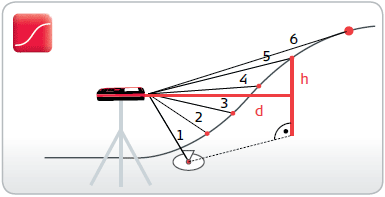
Profile Measurement

Target the device on a known reference mark and then measure the height differences of other points relative to this. If the measured points are taken all in one direction the profile of the ground can be determined from the measured horizontal distances and the height differences.